
How to Create Natural AI Dialogue for AI Video
Good dialogue helps a scene feel believable. One person wants another take; the other wants to pack up before the rain arrives. Their conversation gives the viewer a reason to pay attention. AI text-to-speech tools can help turn a written exchange into dialogue for short films, product videos, explainers, and social media content. But generating two voices is only the beginning. The script, voice choices, pauses, and timing all affect how natural the final scene feels. Today, we'll build a short two-person scene, then look at how to prepare the audio for a video edit.
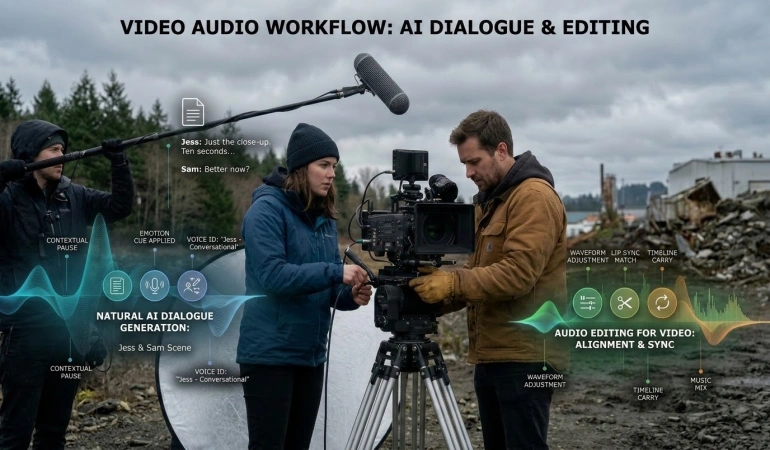
Steps to Create Natural AI Dialogue
Creating realistic AI dialogue requires a thoughtful balance of scriptwriting, voice selection, and post-production refinement. Below is a step-by-step workflow to help you build natural-sounding conversations for your video projects.
1. Write a Scene With a Clear Purpose
Start by deciding what each character wants. In our example, Jess wants to capture a product shot, while Sam is worried about the approaching rain.
That small disagreement gives the conversation direction. You don't need a long backstory; the characters' words and actions should tell viewers enough to understand what's happening.
Here's the starting script:
Jess: Can we do one more take? I think I missed focus on the last one.
Sam: We can, but look at those clouds. We need to move.
Jess: Just the close-up. Ten seconds, then we pack everything away.
Sam: All right. I'll hold the reflector. Tell me when you're ready.
Jess: Wait. There's a shadow across the label.
Sam: Better now?
Jess: Yes. Keep it there. Okay... rolling.
Sam: Steady. You've got it.
Jess: And... done. Let me check.
Sam: Please tell me that worked.
Jess: It did. That's the shot.
Sam: Good. It's starting to rain.
Before generating audio, read the dialogue aloud. If a line feels awkward to say, simplify it. Short sentences and familiar words often sound more natural than formal, carefully written prose.
Keep visual directions separate from spoken dialogue. For example, “Jess checks the camera screen” belongs in your production notes, not in the text-to-speech script.
2. Import the Script and Check the Speakers
Once the script is ready, open a text-to-speech tool that supports multiple speakers. For this example, you can use FlowSpeech text to speech to work with the dialogue.
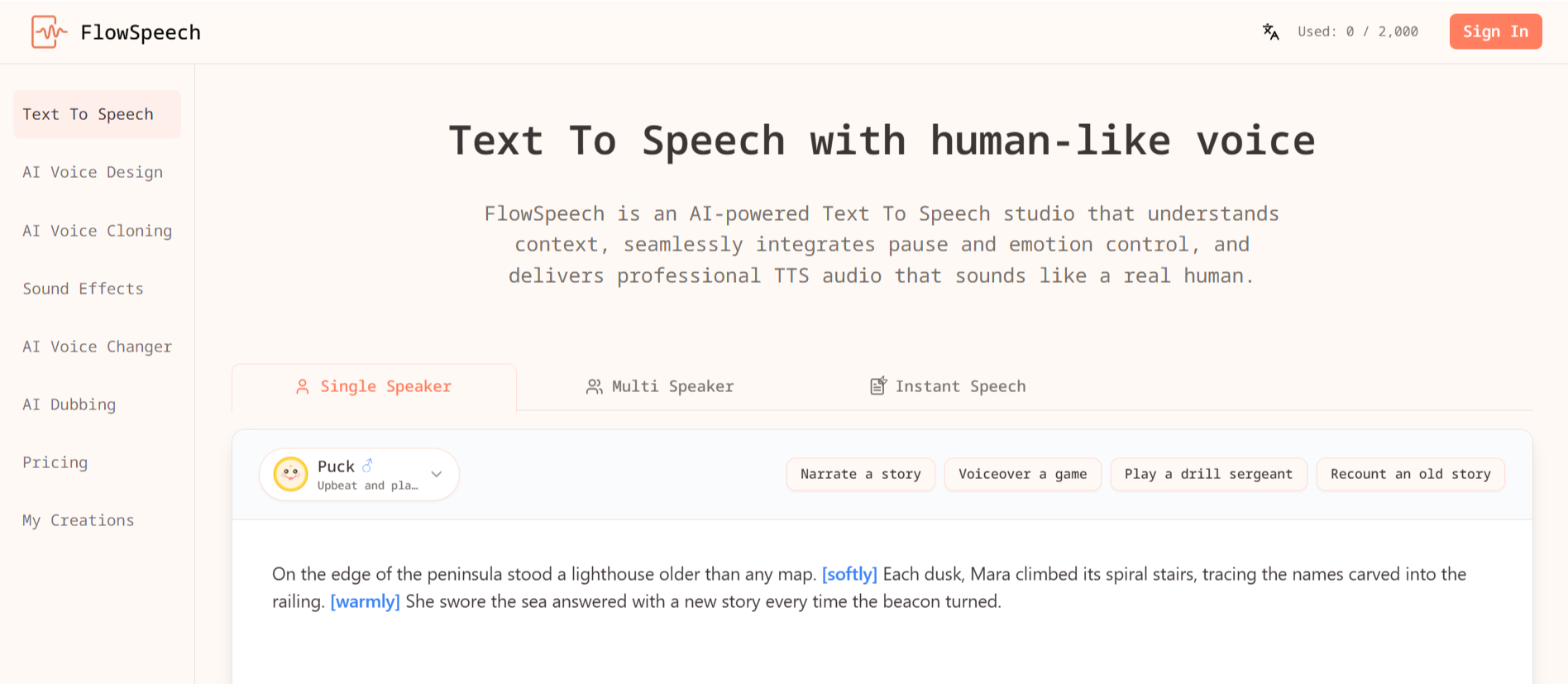
If the interface offers a multi-speaker or dialogue mode, use it to separate the script into individual speaking turns. Depending on the tool, you may be able to paste a complete script and identify speakers automatically.
After importing the dialogue, check the following:
Speaker names: Make sure Jess's lines belong to Jess and Sam's lines belong to Sam.
Speaking order: Confirm that the conversation follows the script.
Missing lines: Check that every sentence has been included.
Text accuracy: Correct punctuation, spelling, and any dialogue that was split incorrectly.
Keep character names consistent throughout the script. Switching between “Jess” and “Jessica,” for example, may confuse automatic speaker detection.
Correct speaker assignment matters when the audio will accompany generated characters, animated scenes, or footage of people talking. If the wrong voice speaks at the wrong moment, the scene can feel disconnected even when the voice itself sounds convincing.
3. Choose Voices That Work Together
A voice that sounds good on its own may not fit the scene. Choose voices based on the characters, their relationship, and the mood of the conversation.
For this example, Jess could have a conversational voice that conveys mild urgency. Sam might sound more measured, with a hint of impatience about the weather.
When comparing voice options, pay attention to:
Clarity: Can you understand every line without straining?
Consistency: Does each character sound like the same person throughout?
Contrast: Can listeners distinguish the speakers easily?
Tone: Do the voices suit the situation?
Pacing: Do the voices handle short questions and longer responses naturally?
Test the voices with the actual script rather than relying entirely on short previews. Listen to this exchange in particular:
Jess: Just the close-up. Ten seconds, then we pack everything away.
Sam: All right. I'll hold the reflector. Tell me when you're ready.
The voices should sound like two people responding to each other, not two unrelated narration samples placed back-to-back.
If you're creating a product demonstration or explainer video, clarity may matter more than dramatic expression. For a fictional scene, a wider range of emotion may be appropriate.
For more background on this part of production, see our guide to why AI voice generators are useful for video marketing.
4. Add Emotion Where It Matters
Natural dialogue changes as a scene develops. In our example, the characters begin with a little tension, focus on getting the shot, and finish with relief.
If your chosen tool supports emotion or delivery instructions, use them sparingly.
For Sam's reassurance, you might specify a calm delivery:
Steady. You've got it.
For Jess's final reaction, aim for quiet satisfaction rather than exaggerated excitement:
It did. That's the shot.
Listen to the result before deciding whether the instructions helped. The wording, selected voice, and surrounding lines can already communicate emotion. Adding too many cues may make the performance sound forced.
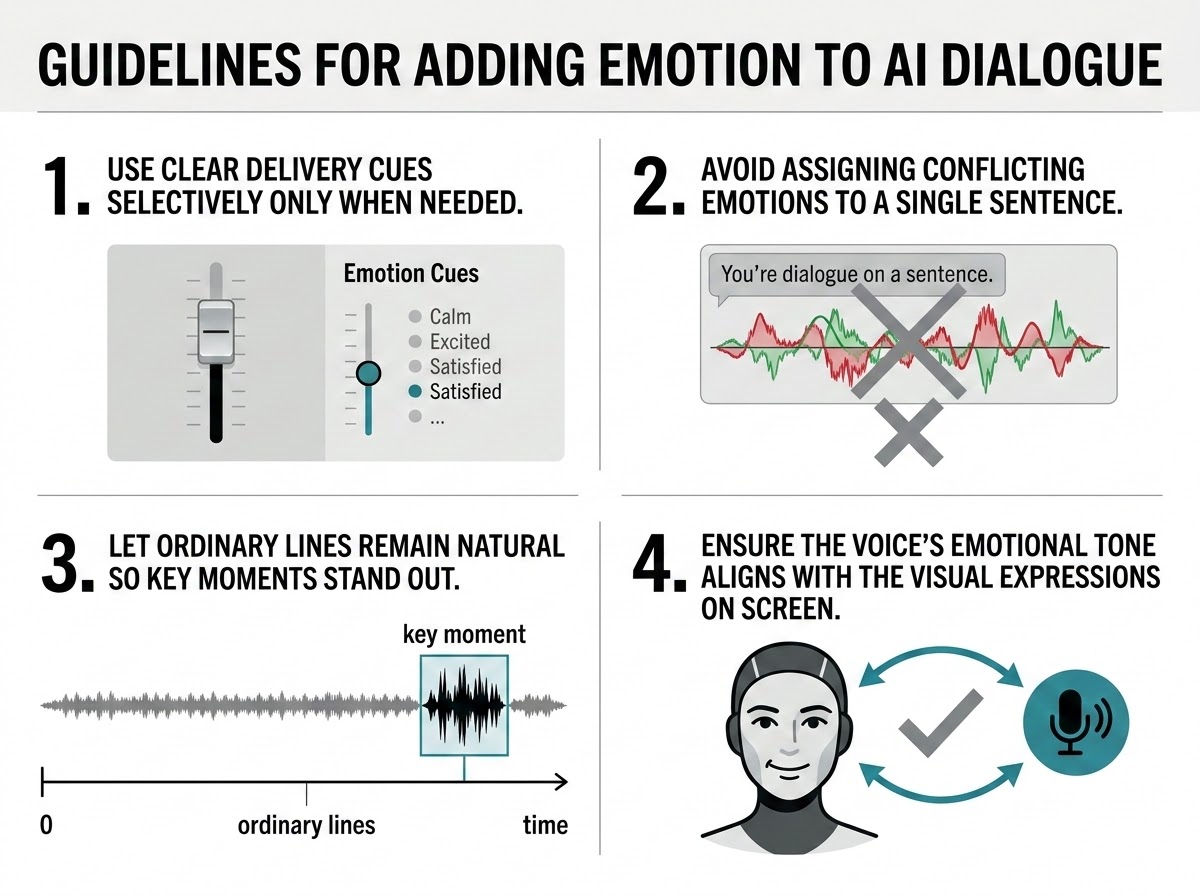
A few practical guidelines:
Use a clear delivery cue only when a line needs it.
Avoid assigning several conflicting emotions to one sentence.
Let ordinary lines remain ordinary so important moments stand out.
Check that the voice's emotion matches the character's expression and action on screen.
A character who looks worried while speaking in a cheerful voice can distract viewers from the scene.
5. Make Room for Responses
Pauses are part of a conversation. People wait for answers, look at objects, process information, and react to what they hear.
Consider this exchange:
Jess: And... done. Let me check.
Sam: Please tell me that worked.
Jess needs time to review the recording before answering. If the next line begins immediately, the scene may feel rushed.
If your text-to-speech tool supports pause controls, use them where the action requires a moment of silence. Otherwise, adjust the punctuation, split the lines, or add space during editing.
Don't insert the same pause after every sentence. Instead, consider what the characters are doing:
A quick question may need almost no pause.
A character checking a recording may need a longer beat.
A surprising answer may benefit from a moment for the listener to react.
A scene transition may require silence or background sound.
If a line feels too long, try removing unnecessary words before slowing down the entire conversation.
These decisions become especially important when matching dialogue to video cuts. A short pause can give a reaction shot room to work, while poorly timed silence can make a scene drag.
6. Generate and Review the Conversation
Generate the audio, then listen to the complete exchange without reading the script. This helps you notice awkward phrasing, confusing speaker changes, and unnatural timing.
On the next pass, check:
Are all lines present and assigned to the correct character?
Are the voices easy to distinguish?
Are important words pronounced correctly?
Do the emotional changes fit the scene?
Are pauses long enough for the action but not so long that the conversation drags?
Does the dialogue sound like a conversation rather than separate voice samples?
Be specific when identifying problems. “Sam sounds impatient while reassuring Jess” gives you a clearer editing target than “Sam sounds wrong.”
Make one change at a time. If a line sounds unnatural, try rewriting it before changing the voice. If the delivery is good but the timing is off, adjust the pause or the video edit instead.
Listen to the final audio from beginning to end before moving on. A line that sounds fine in isolation may not work as well in the complete conversation.
7. Fit the Audio to the Video
Once the dialogue is ready, import it into your video editor and place it on the timeline.
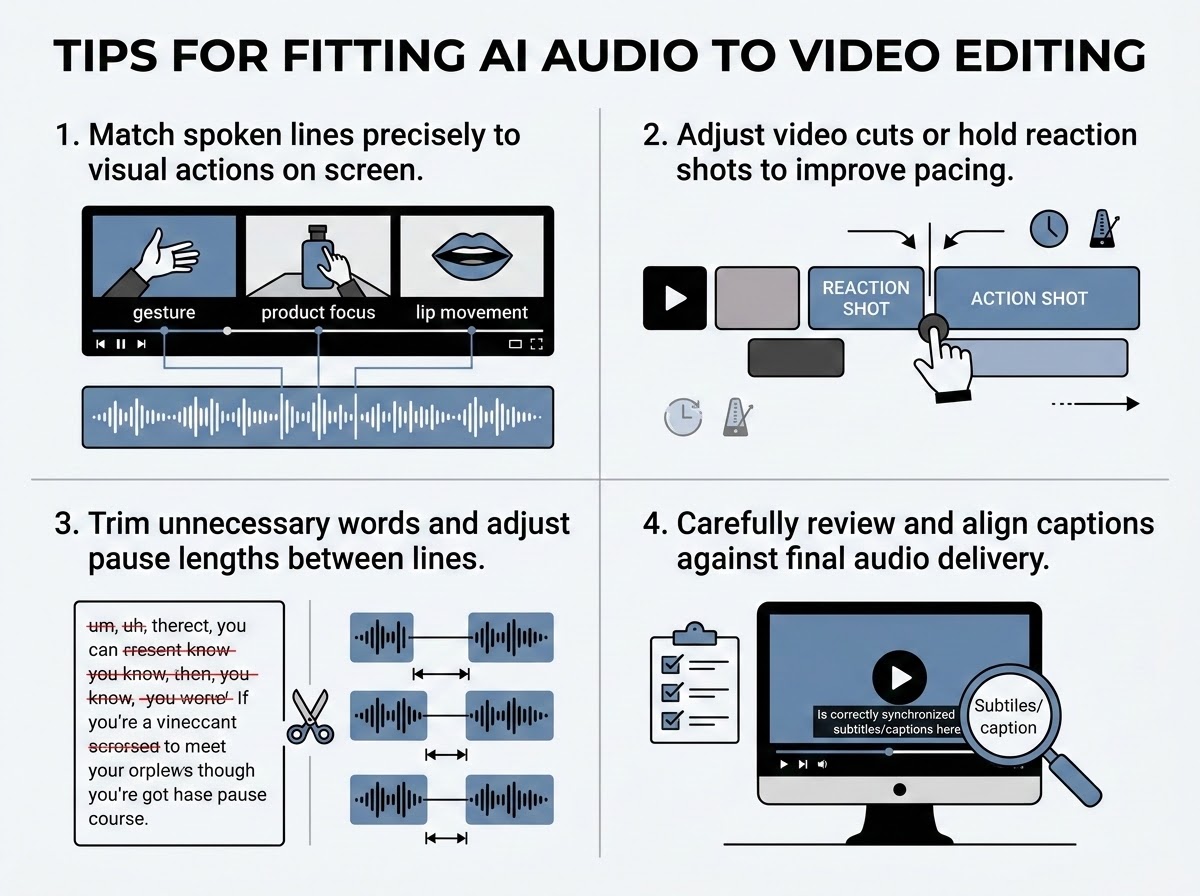
Match each line to the action viewers see. When Jess notices the shadow, show the product label. Give her time to check the recording before she announces that the shot worked.
If the audio and visuals don't line up, try these adjustments:
Move a cut to match the start or end of a line.
Hold a reaction shot for a little longer.
Shorten a line that contains unnecessary words.
Adjust a pause to make room for an action.
Re-record or regenerate a line if its delivery doesn't fit the scene.
Avoid speeding up the entire conversation just to fix one awkward moment. The problem may be a single line or cut, not the overall pace.
Add background music and sound effects after the dialogue is clear. Keep environmental sounds, such as rain or equipment noise, low enough that viewers can understand the characters.
Finally, review the captions against the finished audio. Check names, punctuation, timing, and any words the speech generator may have pronounced differently from the written script.
You can also explore our guide to AI video editing with prompts for ideas on refining footage and improving the flow of an edit.
Final Thoughts
Natural AI dialogue depends on more than choosing realistic voices. A clear script, distinct characters, appropriate emotional delivery, and well-placed pauses all contribute to a convincing result.
The final edit matters just as much. Dialogue should fit the characters' actions, support the visuals, and leave viewers enough time to follow the scene.
AI text-to-speech can make it easier to create and revise dialogue, but listening carefully and making deliberate editing decisions are what help the finished video feel coherent.
Frequently Asked Questions
Here are some common questions to consider when creating dialogue-driven AI videos.
How do you make AI-generated dialogue sound natural in a video?
Start with conversational writing rather than formal, lengthy sentences. Give each character a distinct voice, use punctuation to guide pauses, and adjust the emotional delivery to match the scene. Always listen to the generated dialogue before adding it to your video.
How do you make AI characters sound emotional when speaking?
Include context and delivery instructions in the script, such as excitement, curiosity, frustration, or calmness. Choose voices that can express the intended emotion, and avoid applying strong emotional delivery to every line. Natural conversations usually contain variations in tone and intensity.
How do you sync AI dialogue with characters in an AI-generated video?
Generate the dialogue first or establish the final audio before completing the video edit. Match each spoken line to the appropriate shot, adjust the timing, and use an AI lip-sync tool when characters need to appear as though they are speaking. Review the finished clip to catch noticeable differences between mouth movements and speech.
Why does AI-generated dialogue sometimes sound robotic?
AI dialogue can sound robotic when the script uses unnatural wording, sentences are too long, pauses are missing, or the selected voice does not suit the scene. Try shortening the lines, adjusting punctuation and speech speed, and testing different voices before generating the final audio.
Can you use AI-generated dialogue for professional videos?
Yes. AI dialogue can be useful for product demonstrations, explainer videos, animated stories, educational content, and marketing videos. However, the result still needs human review. Check pronunciation, voice consistency, emotional delivery, audio quality, and synchronization before publishing.

Lahaga Aondowase
Is the founder of AI Video Tools Pro, an AI video tools directory that helps creators, marketers, educators, and businesses discover AI video software. He researches and evaluates AI video tools based on their features, use cases, pricing, and practical workflows.
Connect on LinkedInRelated Articles
View All




User Comments (0)