How to Turn PowerPoints into Engaging Videos in Seconds
Recently, the way we share information has changed. Traditional, static PowerPoint slides often fail to capture attention because people now prefer moving images and sound. If you have a great idea trapped in a stagnant slide deck, it might never reach its full potential. This is why FlexClip AI PPT to Video Converter is a game-changer. It transforms your old presentations into high-definition, narrated videos that people actually want to watch.
April 15, 2026 12:44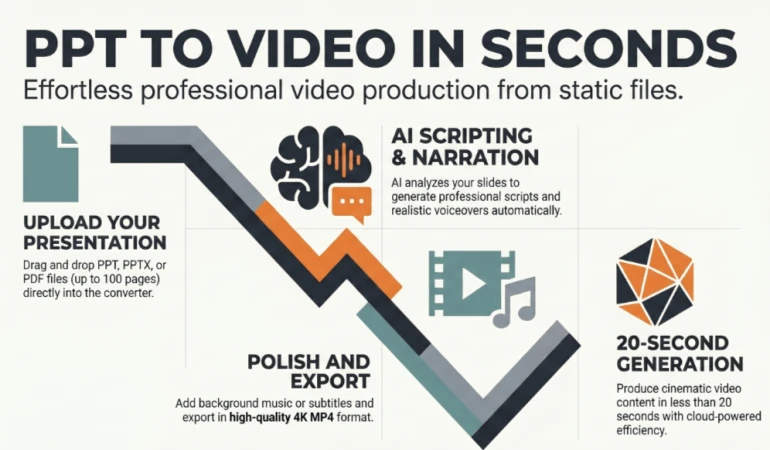
FlexClip AI eliminates the difficult video editing process that used to take hours or even days. Instead of struggling with complex software, you can now publish faster and reach your audience with ease. Whether you are a teacher, a marketer, or a content creator, this guide will show you how to turn your slides into cinematic videos in just a few clicks.
Key Features of FlexClip PPT to Video AI
FlexClip AI is more than just a simple converter. It is a complete AI production studio. Here are the core features that make it stand out:
Automated Video Generation: You no longer have to manually move elements or set timings. The AI turns each of your slides into a high-definition image automatically. It then adds professional transitions between these images to make the video flow smoothly.
Smart AI Scripting: Many people struggle to write a script from scratch. FlexClip solves this by analyzing your slide text. It identifies your core messages and expands them into clear, professional explanations that are perfect for a video. You can even choose different script lengths to fit your needs.
Realistic AI Voiceovers: A video needs a great voice to be engaging. FlexClip uses advanced text-to-speech technology to offer various realistic voices, languages, and tones. You can adjust the speed and pitch to create the perfect delivery for your specific project. This means you don't need expensive recording gear or a professional voice actor.
High-Quality Output: Quality matters when you want to look professional. FlexClip ensures you do not lose quality during the conversion. You can choose to export your video in several resolutions, including 480P, 720P, 1080P, and even 4K.
If you want a deeper breakdown of AI Video Generators vs Presentation Tools, you can check this detailed guide.
Step-by-Step Demonstration: From PPT to Video
Turning your slides into a video is simple. Here is a three-step process that anyone can follow.
Step 1: Upload Your PowerPoint
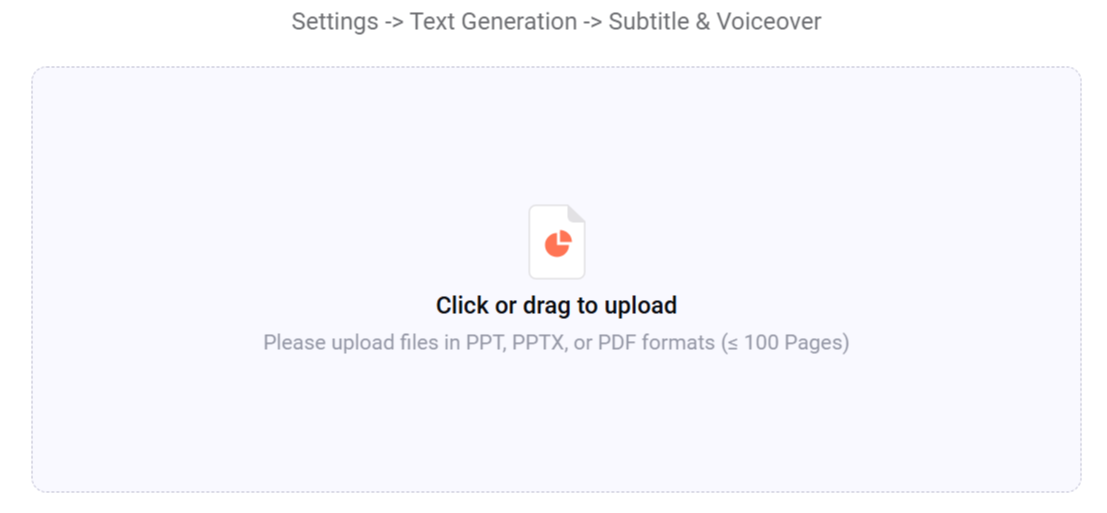
First, access the FlexClip PowerPoint to Video tool. You can click to upload or simply drag and drop your file into the window. The tool supports PPT, PPTX, and PDF formats. Just keep in mind that the file must be 100 pages or fewer.
Step 2: Choose Your Video Settings
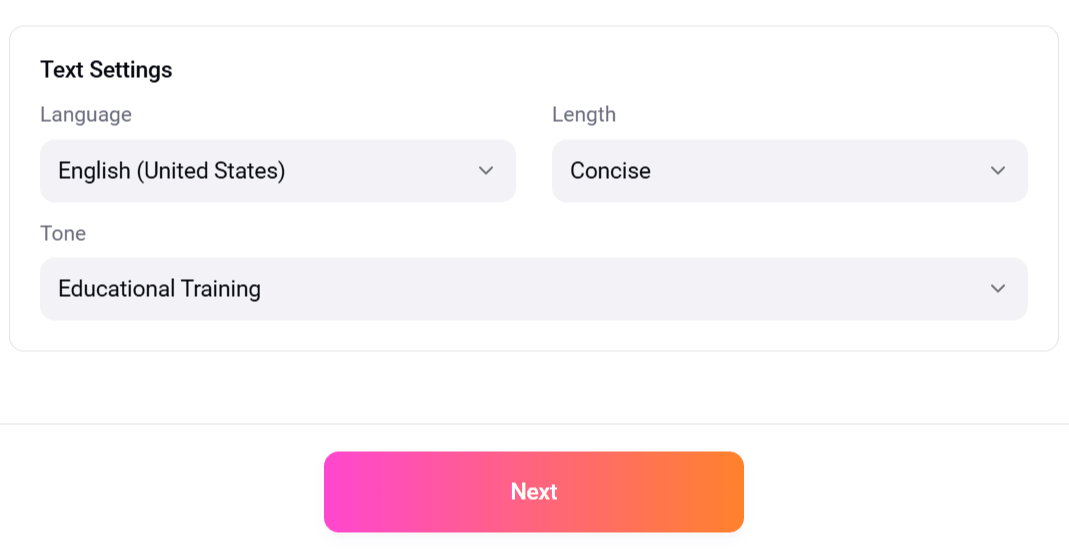
Next, you need to set up the AI configuration. You will choose the language, video length, and tone. The AI will then analyze your slides and generate a script. You are free to edit this script to add a personal touch. Once the script is ready, pick a voice you love and hit the "Generate" button.
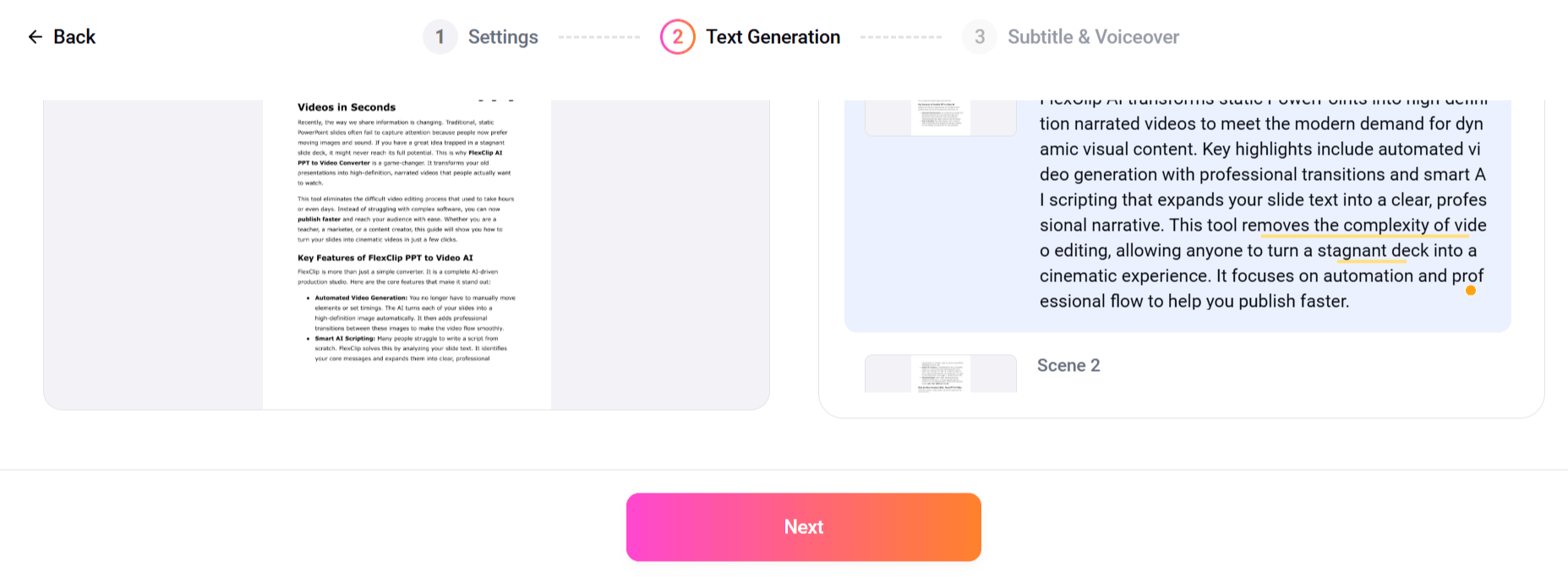
Step 3: Review and Customize the Text
After the AI extracts the text, you can edit and refine it to meet your video goal.
Step 4: Set up Subtitle and Voiceover
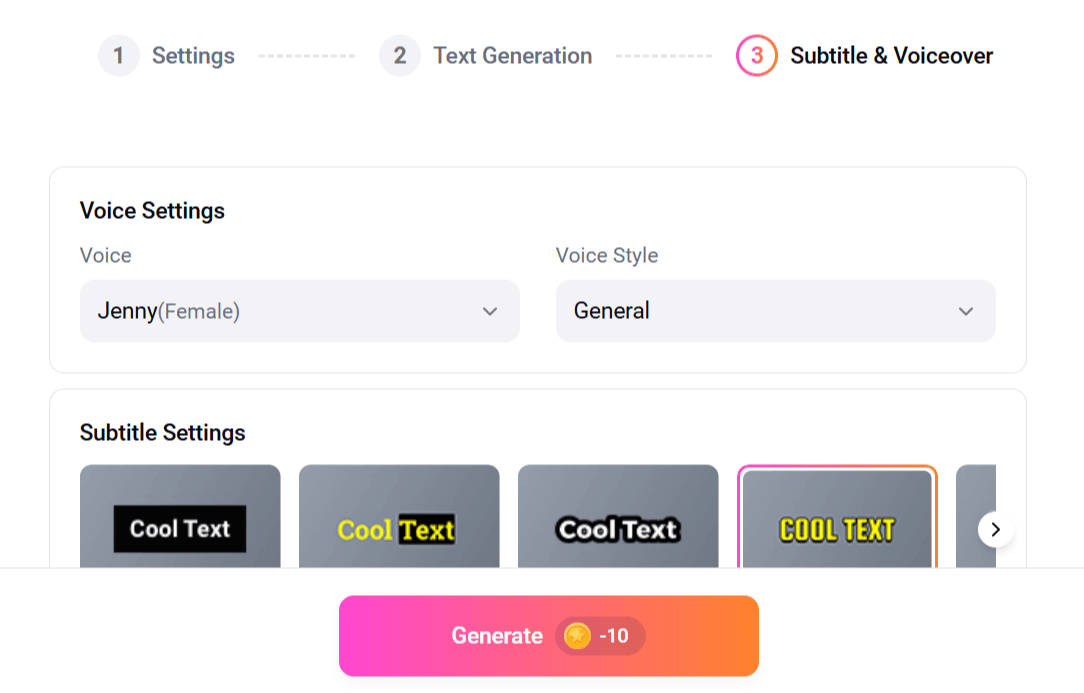
In this step, you can customize the voice, voice style, and subtitle settings and click generate.
Step 5: Polish
After the AI creates the base video, you can enter the editing panel to add more style. While the AI adds narration automatically, you can also choose to add background music from a library of over 74,000 tracks. You can also use other tools to trim, merge, or add text and subtitles to make the video perfect.
Step 6: Export and Save
When you are happy with your work, you can preview the video one last time. FlexClip allows you to download your video as an MP4 file, which is the standard format for video content. You can save it to a local folder, upload it to a cloud service, or post it directly to social media. You can also share it via a short link, which is very helpful for reaching many people quickly.
Who Can Benefit? (Target Use Cases)
Different industries find unique ways to use this AI tool to save time and improve engagement.
1. Educators and Trainers
Teaching has changed, and students now expect more dynamic content. Teachers can turn static educational slides into videos that are perfect for pre-learning, online courses, or revision materials. This helps students retain more information because they are seeing and hearing the lesson at the same time. Educators like Timcat Tang recommend FlexClip because it is simple for both teachers and students to use.
2. Marketing and Sales Teams
If you have a product deck but no time to edit a full video, this tool is for you. You can create friendly, eye-catching sales videos for client follow-ups, LinkedIn posts, or webinars. Marketers have found that these videos create a "wow factor" that brings in new customers. It is an effective way to stand out in a crowded market.
3. HR and Internal Communications
Internal company messages are often ignored when they are just text. By turning PowerPoints into videos, HR teams can boost engagement for new hire training, policy updates, and leadership messages. It makes compliance reminders and remote team updates much more interesting for employees.
4. Content Creators
Your creative ideas should never be trapped in a file on your computer. Creators use FlexClip to turn their slide-based research into "scroll-stopping" videos for YouTube and TikTok. It allows you to stay consistent with your posting schedule without doing heavy manual editing.
Why Choose FlexClip?
There are many video editors, but FlexClip offers specific advantages for busy professionals.
Unmatched Efficiency: If you have a stable internet connection, you can generate a video in less than 20 seconds. There is no more endless waiting for files to render on your computer.
Top-Tier Security: FlexClip uses cloud-powered servers that maintain the highest security standards. This means your PPT files and MP4 projects are stored safely.
A Massive Creative Library: Beyond the AI, you get access to a "one-stop shop" for creators. This includes 6,000+ templates, 4 million stock photos and videos, and 3 million dynamic elements.
Easy Collaboration: You can collaborate with teammates to build branding assets and work more efficiently. Cloud storage makes it easy for everyone to access the latest version of a project.
Beyond PPT: The Full FlexClip AI Ecosystem
FlexClip is a complete solution for the AI era. Once you master the PPT to video tool, you can explore other powerful AI features:
AI Video Generator: Create a full video just from a text prompt or a URL.
AI Auto Subtitle: Automatically identify speech and create subtitles for your videos.
AI Video Background Remover: Easily take the background out of any video or image with one click.
AI Translator: Create videos in multiple languages to reach a global audience with ease.
AI Image to Video: Turn static images into moving cinematic clips.
Conclusion
FlexClip bridges the gap between old-fashioned presentations and the modern world of video content. It is a powerful yet easy-to-use tool that empowers everyone, from novices to professionals, to create stunning artwork.
Converting static slides into a video format helps ideas reach a wider audience through social media. FlexClip PowerPoint to video automates the difficult parts of editing by turning each slide into a high-definition video and adding professional transitions.
Currently, over five million registered users in fields like education and marketing use these tools to handle their video production needs.

Lahaga Aondowase
I'm passionate about empowering creators through the power of AI. As the founder of AI Video Tools Pro, I aim to banish the time-wasting struggle of finding the perfect AI video tools for your content creation.
Related Articles
View All





User Comments (0)