How to Use AI Image Generators for Video Creation
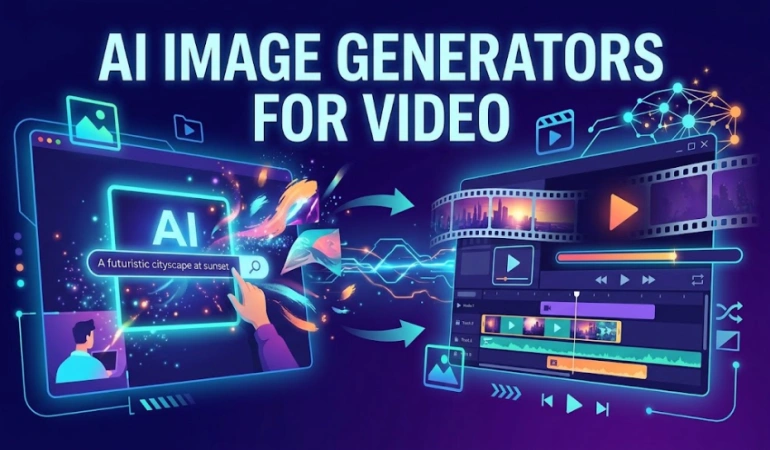
AI image generators are changing the way we create videos. Instead of searching for the perfect stock photo or drawing every visual by hand, we can describe what we want and let AI create an image. We can use these images in many parts of video production. We can use them for storyboards, B-rolls, backgrounds, educational videos, social media content, storytelling and even image-to-video projects. The process can be as simple as: Idea → Script → AI image → Image-to-video → Editing → Final video AI images are not a replacement for good storytelling or editing. They are another tool that can help creators turn ideas into visuals faster and try different ideas before making a final video.
Why AI-Generated Images Are Useful for Video Creation
Making a video often means finding or creating many different visuals. You may need a person in a certain setting, a special background, an imaginary location or an image that explains an idea.
Stock image websites may not always have exactly what is needed. Hiring a designer for every image can also take time and money.
This is where AI image generators can help.
You describe an image in words, and the AI creates a visual based on the description. For example, you could ask for:
A small robot walking through a colorful city at sunset, cinematic style.
The result can then become part of a video.
There are many AI image generator online, so you can create images directly in a web browser without installing complicated software.
Some tools also offer free AI image generators, although free plans may have limits on image quality, generation speed, features or the number of images a user can create.
The important thing is not simply creating images. The real benefit is being able to create visuals that match the story of a video.
5 Ways You Can Use AI-Generated Images
AI-generated images can help you save time and bring ideas to life without needing advanced design skills. Here are five simple ways you can use them in your creative work.
1. Create Custom Visuals
Sometimes a video needs an image that is difficult to find anywhere else.
A creator making a video about space, for example, may need a picture of a fictional planet. A business may need a specific product scene. A teacher may need an illustration that explains a difficult idea.
An AI image generator can create these visuals from a simple description.
You can also try different ideas quickly. Instead of spending hours looking for one suitable image, they can generate several versions and choose the one that works best.
They can use an AI Image Generator to create images from text prompts that can then be used as part of a video project.
2. Build Storyboards
A storyboard shows what a video may look like before it's made.
Traditionally, storyboards can be drawn by hand or created using simple sketches. They do not have to look perfect, but they need to help you understand each scene.
AI-generated images can make this process easier.
For example, someone making a short story could create images for:
A character walking into a house.
The character finding a mysterious box.
The character opening the box.
A bright light coming from inside.
These images can help you see whether the story makes sense before spending time on filming or editing.
The images do not even have to appear in the final video. They can simply be visual guides during planning.
3. Explain Complex Ideas
Some ideas are difficult to explain with words alone.
Teachers, YouTubers and educational creators can use AI-generated illustrations to make these topics easier to understand.
For example, a science video could use generated visuals to show what happens inside a cell. A history video could create a visual representation of an old city. A technology video could show an imaginary data center or future computer.
The goal is not to make the image look impressive just for the sake of it. The image should help the viewer understand the topic.
4. Create Backgrounds and B-Roll Alternatives
Videos often need extra visuals between the main scenes.
You may need a city background, office environment, landscape, room or abstract animation background. AI-generated images can provide another option when suitable stock footage or photography is not available.
For example, a business video about remote work could use AI-generated office backgrounds or illustrations to support different parts of the narration.
AI images should not always replace real footage. If a video needs to show a real person, real event or real product, authentic footage may be a better choice.
But for creative or illustrative content, AI-generated visuals can give you more options.
5. Create Starting Points for Image-to-Video
This is one of the most useful connections between AI images and AI video.
You can first generate a still image and then use an image-to-video tool to add movement.
For example:
Text prompt → AI image → Image-to-video → Video clip
Imagine you want a video of a spaceship flying over a strange planet. Instead of asking an AI video tool to create everything at once, you could first create the planet and spaceship as an image.
The image then becomes the starting point for an animated video.
This can give you more control over the appearance of the scene.
How AI Images Fit Into a Video Creation Workflow
AI image generation works best when it is part of a larger video workflow.
Here is a simple process.
Start With an Idea: First, decide what the video is about. It could be a YouTube video, social media clip, educational lesson, advertisement or short story.
Write the Script: The script explains what the video will say. At this point, think about which parts of the script need visual support.
Plan the Scenes: Break the script into smaller scenes. Ask: What does the viewer need to see here? Some parts may need real footage. Others may work better with an illustration, generated image, animation or screen recording.
Generate the Images: Now create the visuals you need. An AI image generator from text free of charge, can be useful for testing ideas before paying for a more advanced tool. However, free tools may have limits, so you should check the tool's current features and usage terms.
This is also where the choice of tool matters. The best AI image generators are not necessarily the ones with the most impressive pictures. A good tool should fit your actual needs, including image quality, style options, speed, editing features, and usage rights.
Turn Images Into Video: If a still image needs animation, it can be sent to an image-to-video tool. The tool may add camera movement, object movement or other animation or use it as a reference. The result can then become one of the clips in the final video.
Edit Everything Together: The generated images and video clips can be combined with voiceover, music, captions, transitions, sound effects, real footage, screen recordings, and other AI-generated clips. This is where the separate pieces become a complete video.
Review the Final Video: Never assume that an AI-generated image is perfect. Look carefully for strange faces, hands, objects, text, logos and other mistakes.
Also ask a bigger question: Does this visual actually help the video? If an image looks great but does not help the viewer understand the story, it may be better to remove it.
From AI Images to AI Video
The connection between AI image generation and AI video generation is becoming increasingly useful for creators.
A still image gives you a starting point. An image-to-video tool can then add motion to that starting image.
For example, you could generate a picture of a woman standing on a mountain. The image-to-video tool could then create a short clip with the camera slowly moving toward her while her clothes and hair move in the wind.
This workflow can be useful when you already knows what the scene should look like.
However, image-to-video tools can also create unwanted changes. Objects may move in strange ways. Faces may change. Backgrounds can become distorted.
That is why the generated video should be treated as an editable part of the project, not always as the finished result.
Keeping AI-Generated Visuals Consistent
Creating one good image is only part of the job.
A video may need 10, 20 or even 50 visuals. They should look like they belong to the same project.
For example, if the same character appears in several scenes, the character should look similar each time.
You should think about:
Character appearance
Clothing
Art style
Lighting
Color palette
Camera angle
Environment
Image size and aspect ratio
It can help to create a clear visual style before generating many images.
AI tools may still produce differences between images, so every important visual should be checked before it is added to the video.
Combining AI Images With Video Editing
An AI-generated image is only one part of a video.
Once the image is ready, you can bring it into a video editor and combine it with other elements.
A still image can be displayed for a few seconds with a slow camera movement. It can also be used as a background behind text or narration.
An image can also be animated with an image-to-video tool like VideoExpress AI, Higgfield, PixVerse, VisionStory AI, Decohere AI, Doodle Maker, etc., before being added to the timeline.
You can then add captions, music, voiceover, sound effects and transitions.
This is why AI image generation should be viewed as a building block for video creation, rather than the entire video production process.
When AI-Generated Images May Not Be the Best Choice
AI images are useful, but they are not the right answer for every video.
Real footage may be better when you need to show:
A real person
A real location
A real event
A real product
A demonstration
A news event
AI-generated images can also contain mistakes. Faces, hands, text, logos and small objects can sometimes look wrong.
You should also be careful when generating images of real people, brands or copyrighted characters.
The best approach is to choose the visual method that works for the specific video.
Sometimes that means using AI. Sometimes it means using stock footage. Sometimes it means recording something yourself.
What You Should Check Before Publishing
Before using an AI-generated image in a video, check four things.
Does the image fit the story? A beautiful image is not useful if it has nothing to do with the message.
Does the image contain mistakes? Look closely at faces, hands, text, objects and backgrounds.
Can you legally use the image? AI tools have different terms for commercial use and other uses of content. Check the rules of the tool you use, especially if the video will be used for business.
Does the image need editing? Sometimes AI image editors can help fix or change part of an image before it goes into the video.
For example, you may want to remove an unwanted object, change the background or adjust part of the scene.
AI Image-to-Video Checklist
Before creating your video, ask:
What does the viewer need to see?
Can AI-generated images help explain the idea?
Do I need a still image or moving video?
Could an AI image become a starting frame for image-to-video?
Do all my images have a similar visual style?
Are there mistakes in the generated images?
Do I need to edit any images before using them?
Does the AI tool allow the intended use?
Would real footage or stock footage work better?
Does every visual help the story?
This simple checklist can prevent you from using AI just because it is available.
The Future of AI Images in Video Creation
AI image generation is becoming another part of the video creation process.
You can start with an idea, turn that idea into a script, create images for important scenes, animate some of those images and then bring everything together in a video editor.
The tools will continue to change. Some AI image generators also include editing, animation and other features that once required separate software.
The bigger change is not simply that AI can create images. It is that you can move more easily from an idea to a visual and then from that visual to a video.
Conclusion
AI image generators can make video creation more flexible.
You can use them to build storyboards, create custom visuals, explain difficult ideas, develop backgrounds and create starting points for image-to-video tools.
But the goal should not be to use AI for every part of a video.
The best results come from using the right tool for the right job. AI can help create the visual, but you still decide what the audience should see, how the story should flow and whether the final video is worth watching.
That balance is what makes AI image generation useful in modern video creation.
Frequently Asked Questions
Here are some common questions about AI-generated images, including how they work, what they can be used for, and what you should know before using them.
Can AI-generated images be used in videos?
Yes. AI-generated images can be used as still visuals, backgrounds, illustrations, storyboards and starting points for image-to-video generation.
Are AI-generated images good for video content?
They can be very useful when you need custom visuals that are difficult to find, photograph or design manually. However, they should still be reviewed and edited before use.
Are AI-generated images copyright-free?
Not necessarily. The rules can depend on the AI tool, its terms and the content being generated. Always check the applicable usage rights before using an image commercially.
Do AI images replace stock footage?
Not completely. AI images are another option for creating visuals. Stock footage, real footage and other media can still be better for certain types of videos.
Can AI images be turned into videos?
Yes. Image-to-video tools can use a still image as a starting point and add movement to create a video clip.

Lahaga Aondowase
Is the founder of AI Video Tools Pro, an AI video tools directory that helps creators, marketers, educators, and businesses discover AI video software. He researches and evaluates AI video tools based on their features, use cases, pricing, and practical workflows.
Related Articles
View All

User Comments (0)