
How to Turn a Flyer Into a Video With AI
A flyer is a simple way to share information. It can tell people about an event, sale, new product, restaurant offer, class, or business service. But a flyer is still a picture. A video can make the same message move, speak, and grab attention as people scroll through social media. The good news is you don't always need to create a video from scratch. You can use an existing flyer as the starting point for an AI video. This is called a flyer-to-video workflow. You can animate the flyer, use it as a starting image for an image-to-video tool, or pull the key information from the flyer to create a completely new promotional video.
September 28, 2026 11:07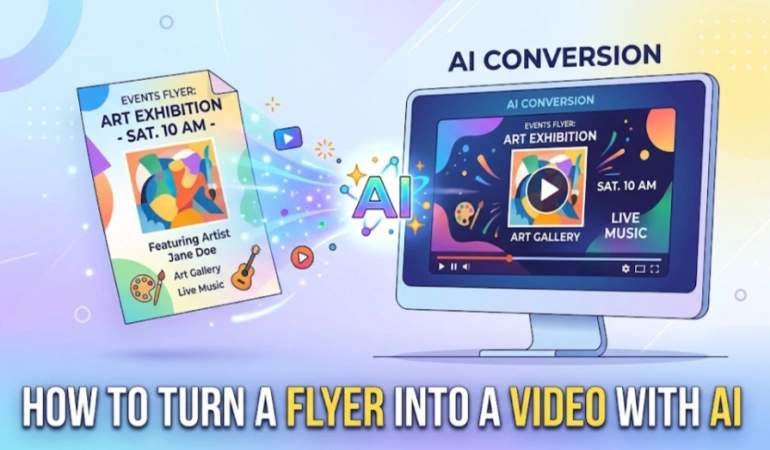
In this guide, you will learn how to turn a flyer into a video with AI, how to prepare your flyer, how to keep important text readable, and how to create a short video that works for social media.
Can You Turn a Flyer Into a Video With AI?
Yes.
There are several ways to turn a flyer into a video.
The simplest method is to animate the flyer. You can add a slow zoom, camera movement, text animation, music, and transitions.
Another method is to use the flyer as an input for an image-to-video AI tool. The tool can add movement to the image or create a short animated scene based on it.
You can also use the flyer only as a starting point. Instead of putting the whole flyer into the video, you can take its main message, images, colors, and branding and use them to create new AI-generated scenes.
For example, imagine you have a restaurant flyer that says:
Grand Opening
Saturday at 6 PM
Free dessert for the first 50 customers
You could turn this into a short video showing the restaurant, food, customers arriving, and the special offer before ending with the event details and a call to action.
The flyer gives you the information. The video gives that information movement.
Why Turn a Flyer Into a Video?
Turning a flyer into a video can help you reuse content you already have.
Instead of making one design and using it only once, you can turn the same campaign into several types of content.
For example:
A flyer for printing
An Instagram Reel
A TikTok video
A YouTube Short
A Facebook video
A WhatsApp promotional video
This does not mean that every flyer should become a video. Some flyers contain too much information and are better left as static designs.
But when the main message is simple, a flyer can be a useful starting point for a short promotional video.
Prepare Your Flyer Before Turning It Into a Video
Before you open an AI video generator, look at your flyer.
Ask one simple question:
What does the viewer really need to know?
Most promotional flyers contain several pieces of information, but not all of them need to appear in a short video.
Look for the most important parts:
Main headline
Product or event name
Date
Time
Location
Price
Special offer
Website
Phone number
Call to action
For example, a flyer might contain a long description of an event. Your video may only need the event name, date, location, main benefit, and CTA.
The video should make the message easier to understand, not harder.
Keep One Main Message
A short video works better when it has one clear idea.
Instead of trying to show five different offers, choose the most important one.
For example:
20% off all shoes this weekend
That can become the main message of the video.
Other information can appear later.
Use a Good-Quality Image
If you are using the flyer as an image-to-video input, start with the best-quality version you have.
A blurry or very small image can make the final video look poor.
Also check that your logo, product images, and important text are easy to see before you start.
Check the Important Facts
AI video tools can create impressive visuals, but you should not assume that every piece of information is correct after generation.
Always check:
Dates
Times
Prices
Addresses
Phone numbers
URLs
Names
Discount percentages
A video that looks beautiful but shows the wrong event time is still a bad video.
What If You Don't Have a Flyer Yet?
You do not need an existing flyer to use this workflow.
If you only have the campaign idea, you can first create a promotional graphic and then use that visual in your video workflow.
For example, you could describe the event, promotion, audience, key information, colors, and style to an AI flyer generator, using text, a logo, a product photo, or other reference images to create a starting design for your video workflow.
This can be useful when you need a visual starting point before moving into an AI video workflow.
Treat the flyer as the starting asset, not the final video.
How to Turn a Flyer Into a Video With AI
Here is a simple step-by-step workflow to follow.
Step 1: Choose the Main Message
Start with the most important thing you want people to remember.
For an event, it could be:
Summer Music Night — Saturday at 8 PM
For a sale:
30% Off All Shoes This Weekend
For a restaurant:
Free Dessert With Every Family Meal
Write this message down before generating the video.
Step 2: Prepare the Flyer or Starting Image
If you already have a flyer, use a clean, high-quality version.
If you do not have one, create a suitable promotional graphic first.
Keep the important information clear and avoid filling the design with unnecessary text.
Step 3: Choose Your AI Video Method
You have several choices.
Option 1: Animate the Flyer
This is the simplest approach.
You can add:
Slow zooms
Camera movement
Text animation
Simple transitions
Music
Light effects
This works well when the flyer already looks good and contains all the information you need.
Option 2: Use Image-to-Video AI
An image-to-video tool can use your flyer or another image as a starting point for a moving clip.
For example, a restaurant promotion could start with the food image from the flyer and turn it into a short moving scene.
This approach can make a static campaign feel more alive.
However, be careful with important text. AI-generated motion can sometimes change or hide text. If the exact wording matters, it is often safer to add the text later in a video editor.
Option 3: Rebuild the Flyer as a New Video
Sometimes the flyer is too crowded.
In that case, do not try to animate everything.
Take the important information from the flyer and create a new video around it.
For example, instead of showing a busy restaurant flyer for 15 seconds, you could create:
A shot of the restaurant
A close-up of the food
A shot of people eating
The special offer
The event date
A final CTA
The flyer becomes your guide, while the video becomes a new piece of content.
Option 4: Combine the Flyer With AI-Generated B-Roll
This is another useful approach.
You can use the flyer for the beginning or end of the video and use AI video clips in the middle.
For example:
Opening: Event flyer
Scene 1: People arriving
Scene 2: Music and dancing
Scene 3: Close-up of the venue
Ending: Event details and CTA
This can create a stronger promotional video than simply making the flyer move.
Step 4: Create Motion That Helps the Message
Do not add movement just because you can.
Every movement should have a reason.
A slow zoom can draw attention to a product.
A camera movement can reveal a location.
A text animation can introduce the date.
A transition can move the viewer from one part of the story to another.
Too many effects can make the video confusing.
The goal is simple:
Use movement to help people understand the message.
Step 5: Add Voiceover or Music
Music can make a short promotional video feel more energetic.
A voiceover can explain the offer or tell the viewer what to do next.
For example:
“Join us this Saturday for our grand opening. Enjoy 20% off your first order.”
Keep the voiceover short.
You do not need to read every word from the flyer.
The video should add something to the original design rather than simply reading the entire page aloud.
Step 6: Add Captions
Many people watch videos without sound.
That makes captions useful.
Your captions should be easy to read and should not cover important parts of the video.
You can highlight important information such as:
Saturday, 6 PM
20% OFF
Book Your Seat
Keep the words short and large enough to read on a phone.
Step 7: Add a Clear Call to Action
Tell the viewer what to do next.
Your CTA could be:
Buy now
Book today
Register now
Visit us
Get tickets
Order today
Learn more
Call now
Do not hide the CTA in a corner.
Give it enough space and time on screen.
Step 8: Check the Final Video
Watch the complete video before publishing it.
Check every important detail again.
Ask:
Is the event name correct?
Is the date correct?
Is the time correct?
Is the price correct?
Is the address correct?
Is the website correct?
Is the CTA clear?
Can I read the text on my phone?
Does the video make sense without sound?
Do not skip this step.
How to Keep Flyer Text Readable in a Video
One of the biggest mistakes when turning a flyer into a video is trying to show everything at once.
A flyer can contain a lot of information because people can stop and read it.
A video moves.
The viewer may only have a few seconds to understand each screen.
Don't Put the Entire Flyer on Screen at Once
Break the information into small parts.
For example:
Scene 1:
Summer Food Festival
Scene 2:
Saturday, July 18
Scene 3:
Downtown Event Center
Scene 4:
Free Entry
Scene 5:
Register Today
This is easier to follow than putting all five lines on the screen at the same time.
Make the Main Message Big
Your most important words should be easy to see.
Do not make the event name tiny while making decorative graphics huge.
The message should come first.
Keep Text Away From Busy Backgrounds
White text over a bright image can be difficult to read.
The same is true for small text placed over a busy photograph.
Use a simple background, darker overlay, shadow, or other clear contrast when needed.
Check the Video on a Phone
Your video may look perfect on a large computer monitor and still be difficult to read on a phone.
Watch the finished video on a small screen before publishing it.
If you have to pause the video to read the price, date, or CTA, the text probably needs more time or better placement.
Example: Turn an Event Flyer Into a 15-Second Video
Imagine you have this information on a flyer:
Summer Night Party
Saturday, July 18
8 PM
Downtown Event Center
$20 Tickets
Scan to Book
Instead of showing the whole flyer for 15 seconds, turn the information into a simple sequence.
0–3 Seconds: Grab Attention
Show the event name with an exciting visual.
Summer Night Party
3–6 Seconds: Show the Date
Show:
Saturday, July 18
Then:
8 PM
6–10 Seconds: Show the Experience
Use an AI-generated scene showing people enjoying a party or the type of atmosphere expected at the event.
10–13 Seconds: Show the Offer
Show:
Tickets: $20
13–15 Seconds: Give the CTA
End with:
Book Your Ticket Today
This is a simple example, but it shows the main idea.
You are not trying to squeeze a whole flyer into a video.
You are turning the flyer's information into a short visual story.
Different Types of Flyers You Can Turn Into Videos
The flyer-to-video workflow can work for many types of campaigns.
Event Flyers: Concerts, conferences, workshops, parties, festivals, and community events can become short announcement videos. Show the event, date, location, and CTA.
Restaurant Flyers: A food promotion can become a short video showing the food, restaurant, offer, and ordering information.
Product Promotion Flyers: Use the flyer's product image and offer as the starting point for a product video. You can then add AI-generated scenes showing how the product looks or is used.
Real Estate Flyers: A property flyer can become a short property video. Show the house, key features, location, price, and contact information.
School and Community Flyers: Announcements, classes, fundraisers, and community programs can become short videos that explain the important details quickly.
Business Flyers: Service promotions, new business announcements, special offers, and seasonal campaigns can all be adapted into video.
Common Flyer-to-Video Mistakes to Avoid
Turning a flyer into a video can be simple, but small mistakes can make the final video hard to watch or understand. Too much text, too many effects, poor timing, or incorrect details can take attention away from the main message. Here are some common mistakes to watch for when creating a flyer-to-video with AI.
1. Trying to Animate Everything
You do not need every part of the flyer to move.
Too much movement can make the video hard to watch.
2. Using Too Much Text
A flyer may have 100 words.
A 15-second video probably does not need all 100 words.
Choose the most important information.
3. Making Everything Move at the Same Time
If the background, logo, text, images, and effects all move together, nothing gets the viewer's attention.
Keep it simple.
4. Forgetting the Original CTA
A beautiful video without a clear next step can waste the viewer's attention.
Tell people what to do.
5. Trusting AI-Generated Text Without Checking It
AI can create or change visual text in unexpected ways.
Always check names, numbers, prices, dates, and other important information before publishing.
6. Using the Wrong Aspect Ratio
The video should be designed for the place where you will publish it.
For short-form vertical content, a 9:16 format is commonly used.
Other platforms and placements may need different dimensions.
Do not create one video and blindly crop it for every platform.
7. Making the Video Too Long
If the message can be explained in 10 or 15 seconds, do not make it 60 seconds just because you can.
Short promotional content should get to the point.
When You Shouldn't Turn a Flyer Into a Video
A flyer is not always the right starting point.
Sometimes the better option is to create a new video from scratch.
This may be true when:
The flyer contains too much text.
The design is very small or low quality.
The campaign needs a product demonstration.
The story needs more explanation.
The flyer was designed only for printing.
The main message is difficult to understand from a single image.
In these cases, use the flyer as a reference instead of trying to animate it.
Take the idea, branding, product, offer, and important information and build a new video around them.
A Simple AI Flyer-to-Video Workflow
Here is the complete process:
1. Define the campaign
Know what you want people to do.
↓
2. Create or select the flyer
Use an existing flyer or create a new promotional graphic.
↓
3. Find the main message
Choose the information people must remember.
↓
4. Choose an AI video method
Animate the flyer, use image-to-video tools like VideoExpess AI, Higgfield AI, Maxfusion or create new AI-generated scenes.
↓
5. Create the motion
Use movement that supports the message.
↓
6. Add voiceover or music
Keep the audio short and useful.
↓
7. Add captions
Make the video easy to understand without sound.
↓
8. Add the CTA
Tell viewers what to do next.
↓
9. Check every important fact
Look at names, dates, prices, addresses, and links.
↓
10. Export for the right platform
Choose the correct aspect ratio and resolution.
This workflow can turn one static marketing asset into several pieces of content without starting from zero every time.
Final Thoughts
A flyer does not have to stay a flyer.
You can take the information inside it and turn that information into a short, useful video. You can animate the original design, use it as an image-to-video starting point, or create new AI-generated scenes around the same campaign.
The best approach depends on the flyer.
If the design is simple and already looks good, a little movement may be enough. If the flyer is crowded, use it as a guide and create a new video instead.
Most importantly, do not let visual effects hide the message.
Keep the headline clear. Make the important details easy to read. Check every date, price, name, and address. Add captions and a clear CTA. Then watch the final video on a phone before publishing it.
The goal is not simply to turn a flyer into a video.
The goal is to turn the flyer into a video that people can understand quickly and act on.
Frequently Asked Questions
Turning a flyer into a video with AI can raise a few simple questions, especially if you are doing it for the first time. Here are answers to some common questions about flyer-to-video workflows, AI tools, video formats, and creating promotional videos.
Can I turn a flyer into a video with AI?
Yes. You can animate an existing flyer, use it as an input for an image-to-video tool, or use its information as the starting point for a completely new AI promotional video.
What is the easiest way to turn a flyer into a video?
The easiest method is usually to animate the flyer with simple movement, transitions, music, and text effects. If you want a more dynamic result, an image-to-video AI tool can create motion from the starting image.
Can AI animate a static flyer?
Yes. AI video tools can use a static image as a starting point for motion. However, check important text carefully because generated motion can sometimes change or hide visual details.
Can I turn a PDF flyer into a video?
Usually, you will first need to turn the PDF page into an image that your video tool can use. After that, you can animate the image or use it as a reference for an AI video workflow.
What should I include in a flyer-to-video prompt?
Keep your prompt simple. Describe the main subject, action, setting, camera movement, visual style, and any important restrictions.
For example:
“Create a short promotional video showing a busy outdoor food festival at sunset. Use warm lighting, gentle camera movement, happy people, and an energetic but natural atmosphere.”
Add important text separately when possible instead of asking the video model to generate large amounts of exact wording.
Should I create a flyer before making an AI video?
Not always. A flyer can be a useful starting point when you already have one. If you don’t, you can create a promotional graphic first or skip the flyer entirely and create the video from your campaign idea.
The important thing is the final message, not the format you started with.

Lahaga Aondowase
I'm passionate about empowering creators through the power of AI. As the founder of AI Video Tools Pro, I aim to banish the time-wasting struggle of finding the perfect AI video tools for your content creation.
Related Articles
View All
User Comments (0)